How to dictate on Mac
The short version: System Settings > Keyboard > Dictation > on, then press the microphone key (F5) in any text field and talk. That is genuinely all it takes. The long version, which is this guide, exists because the setting hides at the bottom of the Keyboard pane, the shortcut has changed twice over the years, punctuation only appears if you know the commands, and when dictation silently stops working there are exactly six things to check.
Turn dictation on (one minute)
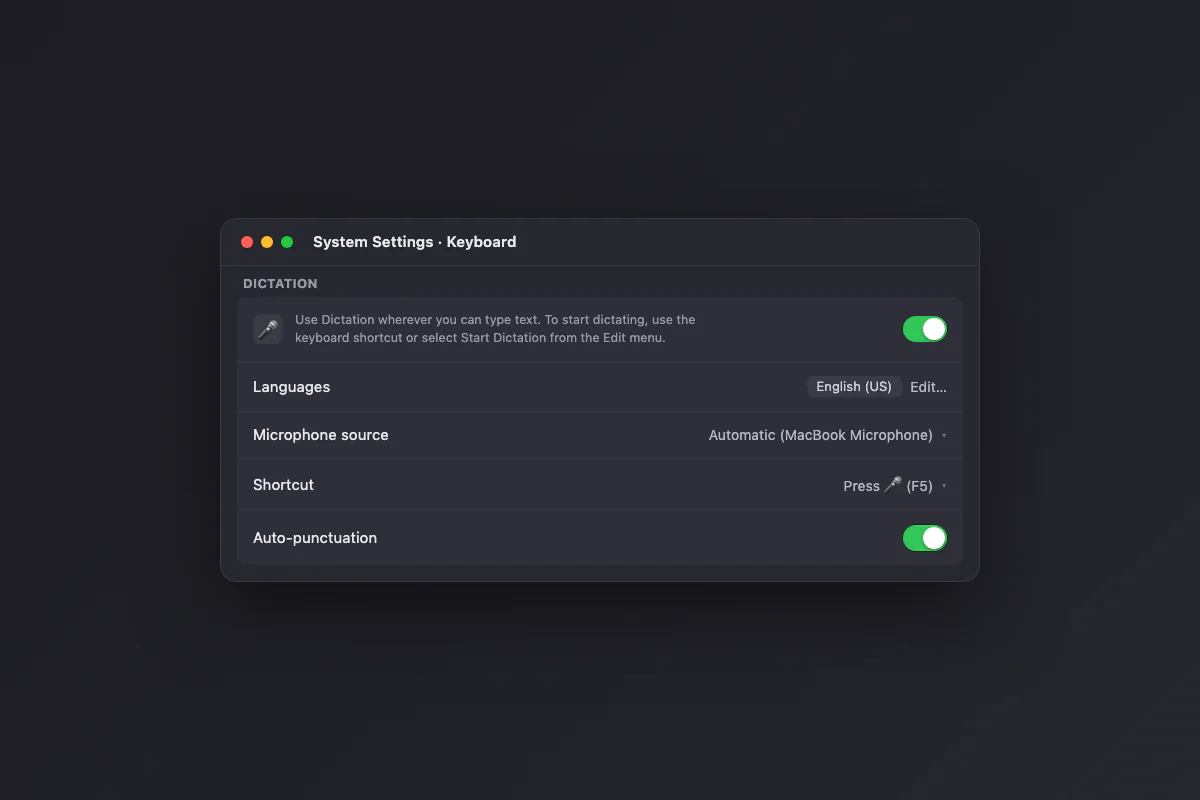
- Open System Settings from the Apple menu.
- Click Keyboard in the sidebar.
- Scroll past the typing options to the Dictation section at the bottom.
- Switch the toggle on. The first time, macOS downloads a speech file for your language; give it a minute on Wi-Fi.
- While you are here, check three settings: Languages matches what you will actually speak, Microphone source is set to Automatic or the mic you use, and Auto-punctuation is on.
One naming clarification, because Apple has two voice features and people land in the wrong one: Dictation types what you say. Voice Control, which lives in Accessibility settings, drives the entire Mac by voice. If your goal is writing by speaking, Dictation is the one you want.
The dictation shortcut
On any Mac keyboard from the last few years, the dedicated microphone key sits in the F5 position. Press it once in any app where a cursor is blinking and a small mic indicator appears next to your cursor: you are live. Press it again (or press Escape, or click Done) to stop.
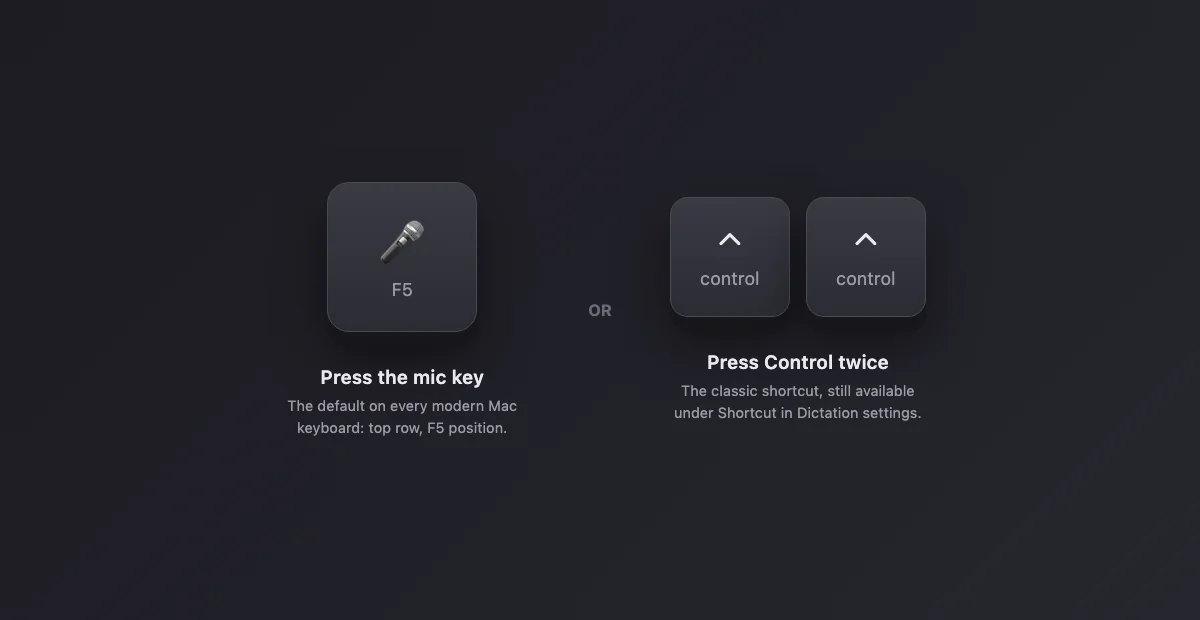
If you learned dictation years ago as "press Fn twice" or "press Control twice", that still exists: under Shortcut in the Dictation settings you can pick the double-press option or a different key. Older keyboards without a mic key default to it. There is no wrong choice, but the mic key wins on muscle memory because it does start and stop with the same single press.
Dictating: where it works and how it behaves
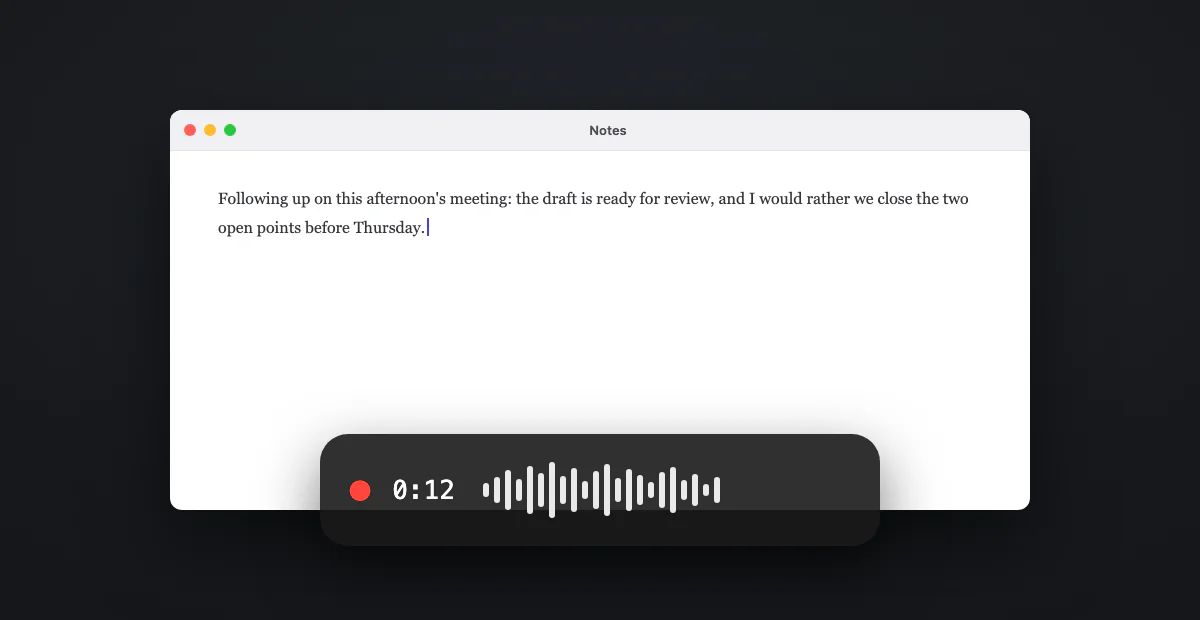
macOS dictation works in every native text field: Mail, Notes, Messages, Pages, Safari forms, Slack, anything with a cursor. There is no separate dictation app to open. Click where you want the text, hit the shortcut, speak in normal phrases, and watch the words appear with a slight delay while the model finalizes them. You can keep typing while dictating; macOS merges both inputs, which is genuinely useful for fixing a word by hand without stopping the mic.
Two behaviors worth knowing before you judge the accuracy. First, dictation commits text in chunks, so a word may visibly correct itself as more context arrives: let it finish before fixing anything. Second, with Auto-punctuation on, macOS inserts periods and commas by itself. It is decent in conversational text and clumsy in lists and technical writing, which is exactly when the spoken commands below take over.
Punctuation and formatting commands
Say these words and macOS types the symbol instead of the word. These work with auto-punctuation on or off:
| Say | You get |
|---|---|
| "period" / "full stop" | . |
| "comma" | , |
| "question mark" | ? |
| "exclamation point" | ! |
| "colon" / "semicolon" | : / ; |
| "open quote" … "close quote" | " … " |
| "hyphen" | - |
| "open parenthesis" / "close parenthesis" | ( / ) |
| "new line" | a line break |
| "new paragraph" | a blank line and a fresh paragraph |
| "caps on" … "caps off" | Title Case for the words between |
| "all caps" | the NEXT word in capitals |
| "numeral five" | 5 instead of "five" |
| "dollar sign" / "percent sign" | $ / % |
| "smiley" / "winky" / "frowny" | :-) / ;-) / :-( |
The two you will use constantly are "new paragraph" and "period". Say them deliberately, as their own words, with a tiny pause around them. Mumbling "period" mid-flow is how you end up with the word period in the middle of a sentence.
Dictating in more than one language
Under Languages in the Dictation settings you can add several and switch between them. Two practical notes from living with it. One: macOS transcribes in whichever language is active, it does not auto-detect, so if your English dictation suddenly produces nonsense, the language is set to something else (this is check number six in the troubleshooting table for a reason). Two: each language downloads its own speech file, and on-device processing depends on the language; macOS tells you in the settings when a language still needs Apple's servers.
Your microphone matters more than people expect, and in the opposite direction of intuition: the Mac's built-in mic array is usually the most reliable option, tuned for exactly this. Bluetooth earbuds can switch into a low-quality call profile that audibly degrades transcription. If dictation got worse the day you started using headphones, set Microphone source back to Automatic and test again.
Five habits that make dictation actually stick
- Speak in phrases, not words. The model uses context to pick words; robotic word-by-word delivery gives it nothing to work with and reads worse too.
- Draft first, edit after. Dictate the whole thought, then fix. Stopping the mic to correct every second word is slower than typing.
- Start with low-stakes text. Messages, quick emails, notes. Fluency builds in a week, and then longer text stops feeling weird.
- Say the punctuation deliberately. Treat "period" and "new paragraph" as commands, with a beat around them, not as mumbled afterthoughts.
- Keep your hands on the keys. The killer feature nobody mentions: you can type and dictate simultaneously. Fix a name by hand while the mic keeps rolling.
What the built-in dictation does well
- It is free and already installed. No account, no download beyond the language file.
- On-device processing for most major languages on Apple Silicon: your audio stays on the Mac, and it works offline.
- No practical time limit for those on-device languages: you can dictate continuously instead of in 30-second bursts like the old days.
- It works everywhere the cursor works, with the same shortcut, in every app.
Where it falls short
Apple's dictation is built for short, casual text, and it shows once you push it. The common walls, in the order people hit them:
- Vocabulary is fixed. There is no way to teach it your product names, client names, medical or legal terms. It will confidently write the wrong word forever.
- No cleanup. Every "um", false start and repeated word lands in the text exactly as spoken. Long dictations need a full editing pass.
- Accuracy drifts with length and accents. Fine for two sentences, noticeably rougher across two paragraphs, and the gap widens for non-native accents.
- Formatting is manual. Beyond the commands above there are no lists, no headings, no "make that an email".
None of this is a bug; it is the scope Apple chose. When the scope is your problem, that is what the dedicated dictation apps exist for, and we compared all of them in the best dictation software for Mac.
Hitting those walls already?
Dictano runs a Whisper large model on your Mac: press a key, speak naturally, paste clean text anywhere. On-device like Apple's, accurate like it should be. $29 once, no subscription.
Dictation not working on Mac: the checklist
When the mic key does nothing, or the indicator appears but no text lands, run through these in order. The first three solve most cases:
| Check | Fix |
|---|---|
| 1. Dictation toggle | System Settings > Keyboard > Dictation: the toggle must be on. Flip it off and on again; this alone fixes a surprising number of cases. |
| 2. Shortcut set to Off | In the same section, Shortcut can be set to Off. Pick the mic key or Press Control Key Twice. |
| 3. Wrong microphone | Microphone source pointing at disconnected AirPods or a muted interface means dictation hears silence. Set it to Automatic. |
| 4. Language file still downloading | Right after enabling, macOS is fetching the speech model. Stay on Wi-Fi and give it a few minutes. |
| 5. Focus is elsewhere | Text lands wherever the cursor is, or nowhere. Click directly inside the target text field, then trigger dictation. This is the Google Docs classic. |
| 6. Language mismatch | Dictating English while Languages is set to another language produces gibberish. Match the setting to what you speak. |
If all six pass and dictation still fails, restart the Mac before anything more exotic: the dictation service occasionally wedges and a reboot resets it.
Dictating in the browser and Google Docs
Browsers add one wrinkle: keyboard focus. macOS types dictation wherever the cursor lives, and a browser has many cursors on offer (the address bar, a search box, the page). The routine that never fails: click inside the actual document or form field, see the text cursor blinking there, then press the mic key. If your words appear in the address bar, that is where the focus was.
Google Docs deserves its own line because it is the top place people report "dictation not working". It works fine with the focus routine above. Docs also ships its own Voice typing under the Tools menu, which listens through the browser instead of macOS. Use one or the other, not both at once, or you will get duplicated text from two transcribers hearing the same sentence.
Built-in dictation vs a dedicated app
An honest comparison, since we make one of the apps:
| macOS Dictation | Dictano | |
|---|---|---|
| Price | ✓ Free, included | $29 one-time, 30-day refund |
| Runs | ✓ On-device (most languages) | ✓ On-device, always |
| Model | Apple speech model | ✓ Whisper large, the open-source accuracy benchmark |
| Long dictation | Drifts, fillers included | ✓ Built for it: clean text, punctuation handled |
| Technical vocabulary | Fixed vocabulary | ✓ Whisper's broader training handles jargon far better |
| Workflow | Types into the field live | Press hotkey, speak, clean text pastes anywhere |
Our advice is the same one we give in the full comparison: use the built-in dictation first, for free, following this guide. The day a two-paragraph dictation comes out needing three minutes of cleanup, you know exactly what you are paying $29 to fix. Coming from Dragon on the medical side? That path has its own guide: Dragon Medical alternatives for Mac.
Mac dictation questions
How do I turn on dictation on my Mac? +
What is the keyboard shortcut for dictation on Mac? +
Why is dictation not working on my Mac? +
Is Mac dictation free and private? +
Is there a time limit for dictation on Mac? +
What is the difference between Dictation and Voice Control? +
How do I dictate in Google Docs on a Mac? +
Dictate like it is 2026
Whisper-grade accuracy, fully on-device, one hotkey. No subscription.